Use the system share sheet to send a link from another app to Keep.
Set up iOS
The iOS share action uses a Shortcut and a separate mobile key. The first setup takes a few extra taps because your browser downloads the Shortcut file before iOS can open it. A Keep app for iPhone is coming soon.
Create your mobile key
- Sign in to Keep on your iPhone or iPad.
- Open Settings.
- Open Connections.
- Find Mobile.
- Create a mobile key.
- Copy the key.
Keep the key ready. You will paste it into Shortcuts near the end of setup.
Download and add the Shortcut
- Tap Download shortcut in the Mobile settings.
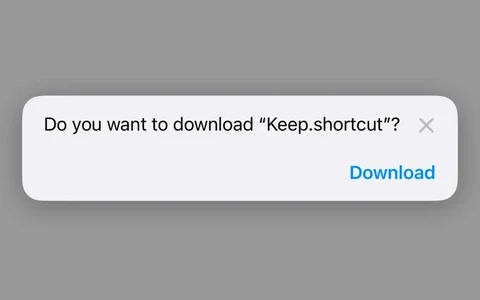
- In Safari, tap Download when it asks about
Keep.shortcut.
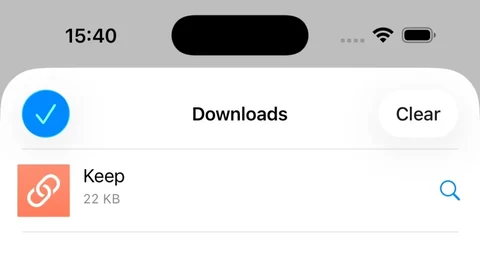
- Tap the Downloads icon in Safari, then tap Keep.
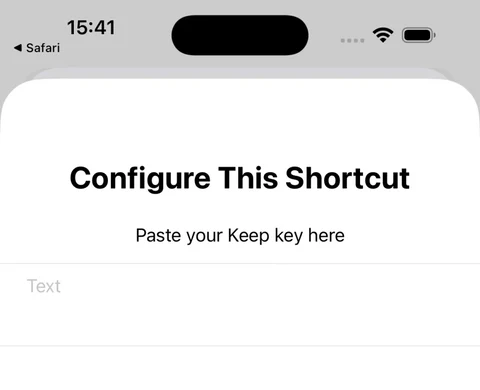
- Tap Set Up Shortcut.
- Paste the mobile key you copied from Keep, then tap Add Shortcut.
If your browser shows Save and Open In
Some iPhone browsers use a file handoff instead of Safari’s Downloads list.
- Tap Save…, choose a folder in Files, then tap Save.
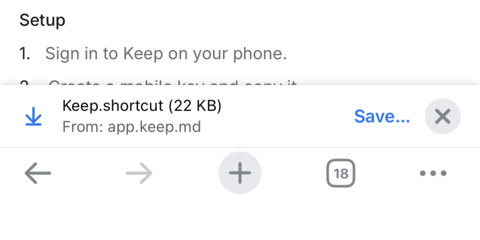
- When the download finishes, tap Open In….
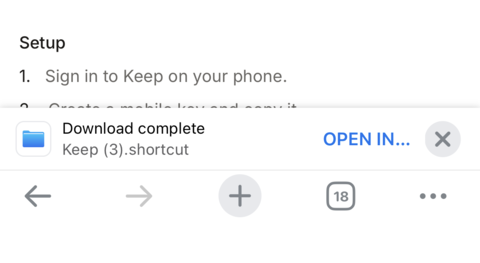
- Tap Shortcuts in the app row. Swipe across the row if you do not see it.
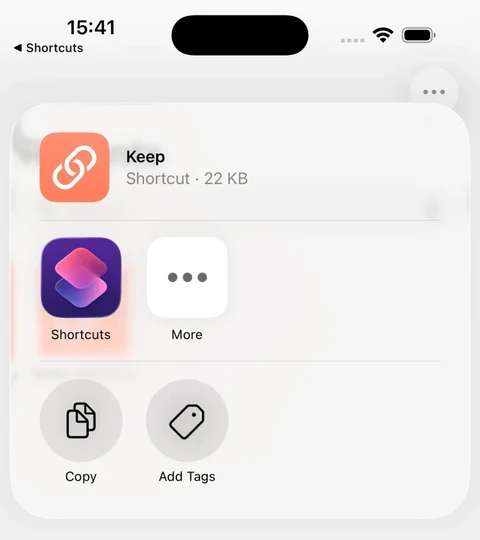
Then tap Set Up Shortcut, paste your mobile key, and tap Add Shortcut.
Set the Keep icon
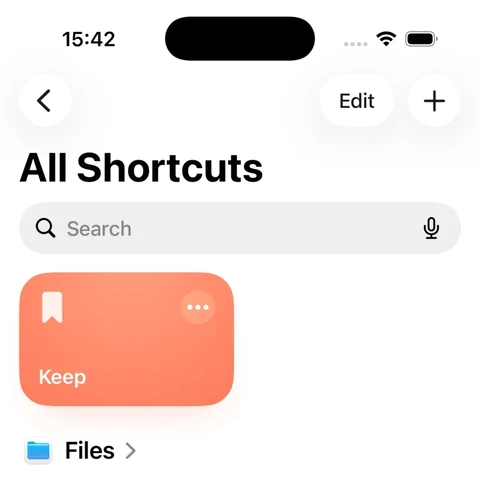
The installed Shortcut can use a Safari icon. You can change it to an orange bookmark so Keep is easy to find.
- Open the Keep Shortcut in the Shortcuts app.
- Tap Keep at the top of the editor, then tap Choose Icon.
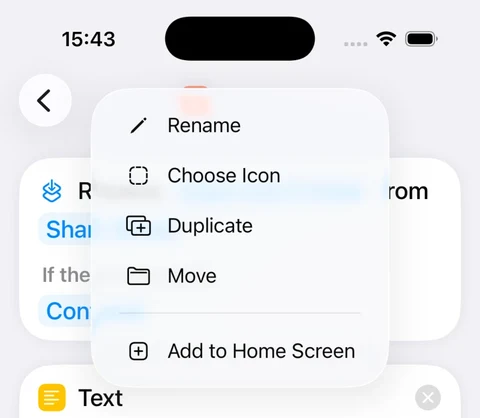
- Select orange, search for Bookmark, then tap the bookmark symbol.
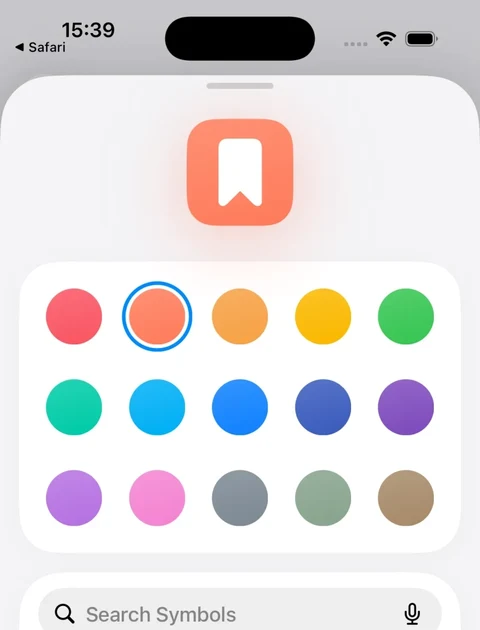
Keep now appears as an orange bookmark in Shortcuts.
Add Keep to the share sheet
- Open a link in Safari or another app.
- Open the share sheet and select Keep.
- Add Keep to your favourite actions if you want it near the top of the list.
Share a link and select Keep. The save screen opens, saves the link right away, and shows the organize controls: add a title, tags, collections, and notes with autocomplete from your existing library. Your mobile key signs the save, so the page never asks you to log in.
Keep can take a short time to read the page. The save screen shows its progress, then replaces the URL with the page title and shows the page description. You can organize the link while this work continues, then tap Done.
If the key is exposed, create a new mobile key. The old key stops working.
Keep app for iPhone (coming soon)
The Keep app for iPhone and iPad is not on the App Store yet. Once it is, you sign in once and Keep appears in the share sheet without a Shortcut or mobile key. Your library and plan carry over, so keep using the Shortcut until then.
Set up Android
Android uses the installed Keep web app.
- Open the Keep app in Chrome.
- Sign in.
- Open the Chrome menu.
- Select Install app or Add to Home screen.
- Open a share sheet in another app.
- Select Keep.
Keep saves the shared link and opens its organize screen. Add a title, saved reason, tags, or collections without submitting the URL again. Type in the Tags or Collections field and pick a result, or add a new one from the same field. Keep saves changes in the background and retains pending changes on the device if the connection drops.
Some Android launchers hide new share targets. Open the full share-target list if Keep does not appear in the first row.
Finish saving in your browser
If you use the iOS Shortcut or the browser save page, tap the orange Done button when you have finished organizing. It becomes available once your changes are saved. You do not need to wait for the title and description.
Done closes the tab when your browser allows it. If the tab stays open, Keep confirms that all changes are saved and you can close the tab yourself.
What the share sheet accepts
The mobile share flow accepts links. Use Capture in the Keep app for files, audio, screenshots, or new Notes.
With Personal, a shared public Instagram post or Reel keeps its caption, every image in a carousel, and the people to credit: the author, collaborators, tagged accounts, accounts mentioned in the caption, location, and Reel audio. Keep stores its own copy of each image, so it still shows after Instagram’s image links expire. A Reel keeps its cover image and a link back to the video.